
Team and teammate basics
What is a teammate?
A teammate is a person you invite to have access to your account using their own login.
How do I add teammates?

On the top left of the platform, open the team selector and click on the gear icon for the team you want to add teammates to.
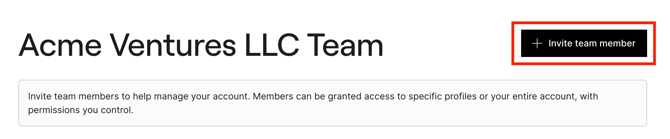
Then, choose "Invite team member."
Can I set teammate permissions?
Yes. You decide what teammates can see and do:
- Give them access to every profile you have.
- Or, limit them to specific profiles you choose.
Depending on the permissions you set, a teammate can view deals, access tax documents, sign for entity profiles, or manage other teammates on your behalf.
Switching between teams
How do I switch between my teams?
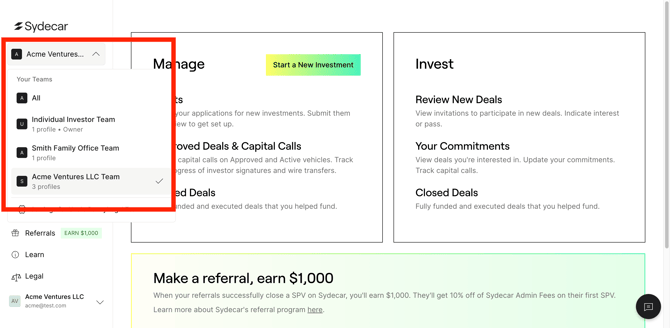
Use the selector at the top left of the platform. Pick a team and the whole platform (including your sidebar, deals, leads, and invitations) will update to match that team and your permissions as part of that team.
Why does my sidebar look different depending on which team I select?
Your sidebar reflects your access in the currently selected team. If you have “Manage” team access on one team but only “View” access in another, the navigation changes to match.
What is the “All” view?
A consolidated list across every team you belong to. It's useful if you manage or deploy capital on behalf of multiple groups, such as several investors or deal leads. Any action you take from the “All” view still follows the permissions of the team that the item belongs to.
Delegation and permissions
What permissions can a teammate have?
NOTE: Each of the options below are separate permission options that you can select or de-select as needed.
Permissions for your whole account
- Manage team – Add or remove teammates, create new profiles, and change what other teammates can do. They can't remove you as the owner.
- Access tax documents – View tax documents, either for your whole account or for one profile you choose.
- View invites – See all investment invitations sent to you and start the investment process on your behalf.
Permissions for deals you run (organizer profiles)
- View and edit deal – See and manage deal details. This is on by default.
- Download investor CSV – Export the list of investors in a deal.
- Manage data room files – Add and organize files in a deal's data room.
Permissions for deals you're investing in (investor profiles)
- View deal – See deal details. This is on by default.
- Sign for deals – Sign documents on your behalf. Only available if the profile is an entity, like an LLC or trust. Never available for individual profiles.
Below are visuals showing you the different permission choices presented when adding a teammate:
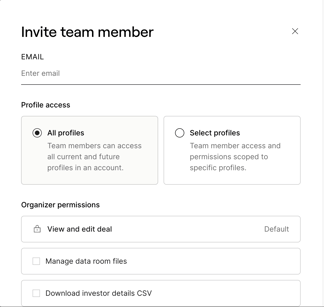
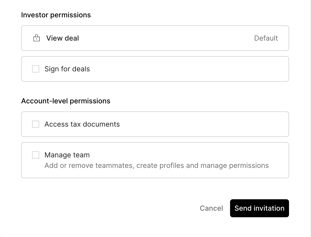
What's the difference between adding a teammate to all profiles versus specific profiles?
All profiles gives a teammate access to every profile you have now and any you create later. Selecting individual profiles limits teammates to the specific ones you choose, with permissions set per profile. A teammate is one or the other, never both.
Why did I get an email about a teammate?
You and anyone with “Manage” team access get notified whenever a teammate is added, removed, or has their permissions changed, so you always know who has access to your account.
Signing rules
Can a teammate sign on behalf of an individual investor?
No. Teammates can never sign for an individual investor profile, regardless of the permissions they hold. Signing on someone's behalf is only available for entity profiles, such as an LLC or trust.
If a teammate signs for me, whose name appears on the document?
The teammate's own name appears on the signed document, not the account owner's.
Other FAQs
I'm a teammate on an account. Why can't I edit the control person or authorized signer details?
The account owner is treated as the control person for any entity listed under their account, and that information belongs to them personally. Only the account owner can edit it. Contact operations@sydecar.io with questions about a specific entity.